Modern websites are no longer simple documents filled with text and images. Today’s web applications behave more like desktop software, supporting smooth animations, real-time dashboards, interactive maps, 3D graphics, and high-definition video playback directly inside the browser.
But there is one important question behind all of this speed and visual smoothness:
How do browsers render modern websites so quickly without freezing your device?
The answer is GPU acceleration in browsers.
Modern browsers such as Google Chrome, Mozilla Firefox, Microsoft Edge, and Safari rely heavily on GPUs to improve rendering performance. Instead of pushing all rendering tasks to the CPU, browsers now offload graphics-heavy operations to the Graphics Processing Unit. This significantly improves scrolling performance, animations, visual effects, and WebGL rendering.
In this guide, you will learn:
- What GPU acceleration in browsers actually means
- How the browser rendering pipeline works
- The difference between CPU vs GPU rendering
- How browsers decide what runs on the GPU
- Why GPU compositing improves performance
- Best practices for web page rendering optimization
- How WebGL performance depends on GPU acceleration
If you work with frontend development, web performance, UI engineering, or browser rendering optimization, understanding GPU acceleration is no longer optional. It directly affects user experience, Core Web Vitals, battery usage, and application responsiveness.
What Is GPU Acceleration in Browsers?
GPU acceleration in browsers refers to the process of using the Graphics Processing Unit to handle rendering-related operations that would otherwise run on the CPU.
Traditionally, browsers relied mostly on CPUs for rendering web pages. That worked well for static websites. But modern interfaces require continuous visual updates, animations, and compositing operations at high frame rates.
CPUs are designed for general-purpose computing and sequential logic. GPUs are designed for parallel graphical processing.
That difference matters.
A GPU can process thousands of graphical calculations simultaneously, making it ideal for:
- CSS animations
- 3D transforms
- Video rendering
- Canvas operations
- WebGL graphics
- Layer compositing
- Smooth scrolling
For example, when you open a highly interactive design tool in the browser, like Figma or a browser-based video editor, the GPU helps maintain smooth frame rendering while the CPU handles application logic.
Without GPU acceleration, modern web applications would feel noticeably slower and less responsive.
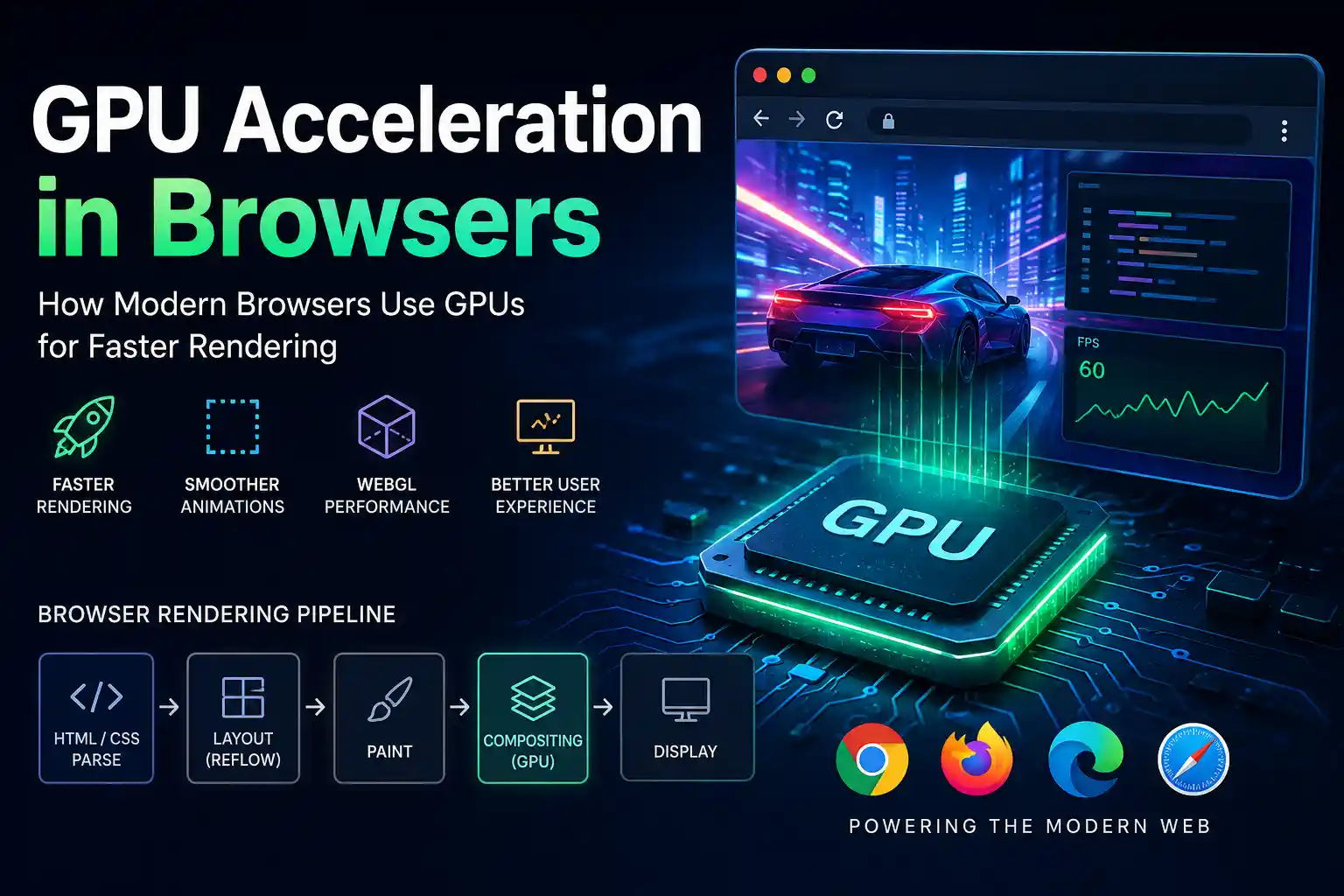
Understanding the Browser Rendering Pipeline
To understand how GPU acceleration works, you first need to understand the browser rendering pipeline.
Every browser follows a rendering flow when displaying a web page.
1. Parsing HTML and CSS
The browser first downloads and parses HTML and CSS files.
It builds:
- The DOM tree from HTML
- The CSSOM tree from CSS
These structures help the browser understand page structure and styling.
2. Layout Calculation
The browser calculates the size and position of every visible element on the page.
This step is often called:
- Layout
- Reflow
Layout operations can become expensive when large parts of the page need recalculation.
3. Paint Phase
During the paint stage, the browser converts layout information into actual pixels.
It determines:
- Background colors
- Borders
- Shadows
- Text rendering
- Images
Heavy paint operations can reduce rendering performance.
4. Compositing
This is where GPU acceleration becomes extremely important.
The browser splits certain page elements into layers. These layers are sent to the GPU for compositing.
The GPU then combines these layers efficiently into final frames displayed on the screen.
Compositing allows browsers to update only specific parts of the screen instead of repainting the entire page.
This dramatically improves:
- Scrolling smoothness
- Animation performance
- Transition responsiveness
- Frame rendering speed
Internal linking opportunity: Link here to a related guide on “How Browsers Render HTML Pages Step by Step.”
CPU vs GPU Rendering: What Is the Difference?
One of the most common questions developers ask is:
What exactly is the difference between CPU and GPU rendering?
CPU Rendering
The CPU handles:
- JavaScript execution
- Business logic
- DOM manipulation
- Layout calculations
- Network operations
CPUs are highly flexible and excellent at sequential tasks.
However, CPUs are not optimized for rendering thousands of graphical operations simultaneously.
GPU Rendering
The GPU specializes in:
- Parallel graphics processing
- Rendering textures
- Layer compositing
- Animation rendering
- 3D graphics calculations
GPUs contain hundreds or thousands of smaller cores optimized for visual workloads.
That makes them ideal for rendering frames quickly.
Real-World Example
Imagine scrolling through a large e-commerce website with animations, sticky headers, image carousels, and transitions.
If the CPU handled every visual update on its own, scrolling would feel sluggish.
Instead, browsers push compositing work to the GPU, allowing smooth 60 FPS rendering on modern devices.
This division of responsibility is one of the biggest reasons modern websites feel more responsive than those from a decade ago.
How Browsers Decide What Gets GPU Accelerated
Not every element automatically uses GPU acceleration.
Browsers carefully decide which elements should become composited GPU layers.
Common GPU-accelerated properties include:
- transform
- opacity
- filter
- will-change
- video elements
- canvas elements
For example, this CSS animation usually triggers GPU compositing:
.card {

transform: translateY(10px);

transition: transform 0.3s ease;

}
But animating properties like top, left, width, or height often forces layout recalculations and repaints, which are more expensive.
Why CSS Transforms Are Faster
Transforms typically avoid layout recalculations.
Instead of repositioning elements through document flow changes, the browser simply updates composited layers on the GPU.
This is why performance-focused frontend developers prefer:
- transform: translate()
- transform: scale()
- opacity animations
over layout-triggering properties.
The Role of the Compositor Thread
Modern browsers use a dedicated compositor thread.
This thread works separately from the main JavaScript thread.
That separation helps browsers continue smooth animations and scrolling even when JavaScript execution becomes busy.
Google Chrome’s rendering architecture heavily depends on compositor-driven rendering for smooth interactions.
How GPU Acceleration Improves WebGL Performance
WebGL performance is one of the clearest examples of GPU acceleration benefits.
WebGL allows browsers to render 2D and 3D graphics directly using GPU hardware.
Without GPU acceleration, WebGL applications would be practically unusable.
What WebGL Is Used For
WebGL powers:
- Browser games
- 3D product viewers
- Data visualizations
- Scientific simulations
- CAD tools
- Virtual tours
- Interactive dashboards
Applications like Google Maps 3D view and browser-based design software rely heavily on GPU rendering.
How WebGL Uses the GPU
WebGL communicates with the GPU through graphics APIs.
The GPU handles:
- Vertex processing
- Texture rendering
- Shader execution
- Frame buffering
- Lighting calculations
This allows real-time rendering at interactive frame rates.
WebGL Performance Challenges
Even with GPU acceleration, poorly optimized WebGL applications can struggle.
Common performance problems include:
- Too many draw calls
- Large texture sizes
- Memory leaks
- Heavy shaders
- Unoptimized geometry
Frontend teams building graphics-heavy applications often spend significant engineering time optimizing GPU memory usage and render pipelines.
Internal linking opportunity: Link here to a future article on “WebGL Optimization Techniques for High-Performance Browser Graphics.”
Common GPU Rendering Bottlenecks in Modern Websites
GPU acceleration improves rendering performance, but it does not magically solve all frontend performance problems.
In fact, overusing GPU layers can create new issues.
Excessive Layer Creation
Each composited layer consumes GPU memory.
If developers force too many elements onto the GPU using excessive will-change declarations, browsers may consume unnecessary memory.
This can actually reduce performance on low-end devices.
Heavy Visual Effects
Some visual effects remain expensive even with GPU acceleration.
Examples include:
- Large blur filters
- Complex shadows
- Massive backdrop filters
- High-resolution animations
Modern design systems sometimes overuse visual effects without considering rendering cost.
The result is poor scrolling performance and dropped frames.
JavaScript Blocking the Main Thread
Even if rendering is GPU accelerated, the browser still depends on the CPU for JavaScript execution.
Heavy JavaScript tasks can block:
- User interactions
- Input responsiveness
- Frame scheduling
This is why frontend performance optimization requires both rendering optimization and JavaScript optimization.
Best Practices for Web Page Rendering Optimization
If you want smoother rendering and better browser performance, GPU acceleration alone is not enough.
You also need efficient rendering strategies.
Use CSS Transforms Instead of Layout Properties
Prefer:
transform: translateX()

transform: scale()

opacity
Instead of:
top

left

width

height
This reduces layout recalculations and repaint costs.
Reduce Layout Thrashing
Layout thrashing happens when JavaScript repeatedly reads and writes layout values.
For example:
element.offsetHeight

element.style.height = '200px'
Repeated layout calculations can severely impact performance.
Batch DOM reads and writes whenever possible.
Limit Paint Areas
Large repaint regions increase rendering cost.
Try to isolate animations to smaller sections of the UI.
Optimise Images and Videos
Oversized media assets increase GPU memory usage.
Use:
- Responsive images
- Modern formats like WebP and AVIF
- Efficient video codecs
- Lazy loading
Avoid Unnecessary GPU Promotion
Do not blindly apply:
will-change: transform;
to every component.
Use it strategically for actively animated elements.
Measure Performance Using Browser DevTools
Chrome DevTools provides detailed rendering diagnostics.
You can inspect:
- Paint flashing
- Layer composition
- FPS rendering
- Main thread activity
- GPU memory usage
Performance profiling is essential for identifying rendering bottlenecks.
Internal linking opportunity: Link here to a detailed “Chrome DevTools Performance Profiling Guide.”
Why GPU Acceleration Matters for Modern User Experience
Users may not understand rendering pipelines or compositing layers, but they absolutely notice performance problems.
Slow rendering creates:
- Laggy scrolling
- Janky animations
- Input delays
- Poor responsiveness
- Higher battery consumption
On mobile devices, rendering efficiency becomes even more important.
Modern smartphones rely heavily on GPU acceleration to maintain smooth experiences while preserving battery life.
This directly affects:
- Core Web Vitals
- User retention
- Session duration
- Bounce rates
- Conversion rates
Large global platforms invest heavily in rendering optimization because even small rendering improvements can impact millions of users.
For example, reducing frame drops during scrolling can significantly improve perceived responsiveness in content-heavy applications.
Frequently Asked Questions
What is GPU acceleration in browsers?
GPU acceleration in browsers uses the Graphics Processing Unit to render animations, compositing layers, videos, and graphics-heavy content faster than CPU-only rendering.
Why is GPU rendering faster than CPU rendering?
GPUs are optimized for parallel graphical processing. They can process many rendering operations simultaneously, making animations and visual updates smoother.
Does GPU acceleration improve website performance?
Yes. GPU acceleration improves rendering performance for animations, scrolling, video playback, and WebGL applications when implemented correctly.
Can too much GPU acceleration hurt performance?
Yes. Excessive GPU layers can increase memory usage and reduce performance, especially on lower-end devices.
How can I check GPU rendering in Chrome?
You can inspect GPU compositing and rendering behavior using Chrome DevTools Performance panel and Chrome’s internal GPU diagnostics page.
GPU acceleration in browsers has completely changed how modern websites and applications are rendered.
Instead of relying entirely on CPUs, browsers now distribute rendering work across CPUs and GPUs to achieve smoother animations, faster compositing, improved WebGL performance, and more responsive user experiences.
Understanding the browser rendering pipeline, CPU vs GPU rendering, and rendering optimization strategies helps developers build interfaces that feel fast on both desktop and mobile devices.
The key takeaway is simple:
Modern frontend performance is no longer just about smaller JavaScript bundles. It is also about smarter rendering.
If you want to build high-performance web applications in 2026 and beyond, GPU-aware frontend engineering is becoming an essential skill.
Next step: Explore a related guide on browser rendering internals, Chrome DevTools profiling, or WebGL optimization techniques to deepen your frontend performance expertise.